NVR Storage Sizing: The Real Formula Before You Buy a CCTV System
Stop guessing NVR storage size. Here's the actual bitrate formula, how H.265 changes it, and how many retention days you really need.
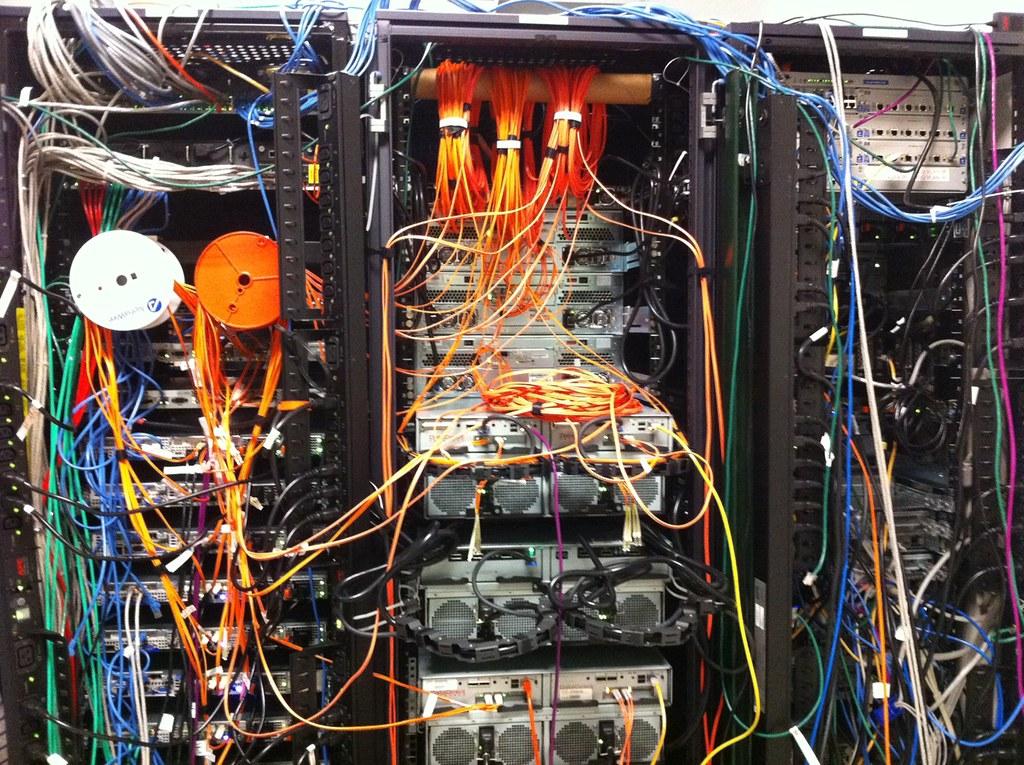
Someone always ends up either buying an 8-bay NVR stuffed with drives it'll never fill, or a 2-bay box that runs out of space in eleven days and silently starts overwriting the footage everyone actually needed. Both mistakes come from the same root cause: nobody did the bitrate math before signing the quote. It takes ten minutes and a calculator. Let's fix that.
Why "just buy a big NVR" backfires
Over-sizing isn't the safe choice people think it is. Extra drive bays cost money up front, extra drives cost more in power and heat over years of 24/7 operation, and a bigger array means a longer rebuild time if a disk fails. Under-sizing is worse: you find out your storage was too small the day you actually need footage from three weeks ago and it's gone, overwritten by the loop recording. Neither problem shows up on day one — the NVR works fine either way when it's freshly installed. It only shows up when you need retention you don't have, or when you've spent budget on capacity nobody uses. The fix is the same in both directions: size it from the actual numbers, not from "let's get the bigger one to be safe."
The core formula: bitrate × cameras × hours × days
Every storage calculator, whether it's a vendor tool or a spreadsheet, comes down to the same relationship: storage required equals bitrate multiplied by recording hours, multiplied by number of cameras, multiplied by retention days — with a unit conversion to get from bits to gigabytes. Written out the way sizing tools actually use it:
Storage (bytes) = (bitrate in Kbps × 1000 / 8) × 3600 × recording hours per day × cameras × retention days ÷ 1,000,000,000
Here's a worked example straight from that formula: two cameras, each streaming at a maximum bitrate of 1024 Kbps, recording continuously (24 hours) for 7 days, need roughly 154.8 GB of storage. Scale that up and the pattern is obvious — double the cameras, double the storage; double the retention days, double the storage again. If you're running 16 cameras instead of 2, and want 30 days instead of 7, you're not looking at a small NAS anymore, you're looking at multiple multi-terabyte drives in RAID.
The variable that trips people up isn't the camera count — that's easy to get right. It's the bitrate. Bitrate isn't a fixed spec you can read off the camera box; it depends on resolution, frame rate, compression codec, and how much motion and detail is actually in the scene. A camera pointed at an empty warehouse aisle at night generates far less data than the same camera pointed at a busy loading dock in daylight, because modern encoders only spend bits on what changes between frames. That's why two "identical" 4MP cameras on the same NVR can produce very different file sizes depending on where they're mounted.
How H.264 vs H.265/H.265+ changes your storage bill
Codec choice is the single biggest lever you have for cutting storage cost without cutting retention. H.265 (HEVC) reduces bitrate by roughly 25 to 50 percent compared to H.264 for the same resolution and quality, depending on the scene. That's not a marginal difference — on a system where H.264 needs an 8TB array, the H.265 equivalent might get you the same 30-day retention on 4-6TB. If your NVR and cameras both support H.265 or the vendor's "H.265+"/"smart codec" variants (which add scene-adaptive bitrate control on top), turn it on. There's essentially no reason to buy new gear in H.264 today unless you're forced into it by legacy compatibility with an existing recorder or an old camera you're keeping in service. Check that both ends — camera and NVR — actually support the codec before you assume it; mismatched firmware is a common reason installers fall back to H.264 without realizing they didn't need to.
Skip the spreadsheet: use the vendor's official sizing tool
Doing the formula by hand is fine for a back-of-envelope check, or for explaining to a client why the quote is what it is. But for an actual purchase order, don't trust your own spreadsheet as the final word. Axis, for instance, points installers to its official AXIS Site Designer tool specifically because manual math tends to miss the details that actually move the number: exact resolution, frame rate, compression setting, recording schedule (continuous vs motion-triggered vs scheduled), and scene complexity. Axis's own design tool factors in image detail and movement in the scene precisely because a static hallway and a busy retail floor at the same resolution don't produce the same file size, even though your formula would treat them identically. Most major NVR and camera vendors offer an equivalent calculator — use the one that matches the brand you're actually buying, plug in your real camera list and real retention target, and treat the manual formula as your sanity check on the tool's output, not the other way around.
How many retention days do you actually need?
This is the number that decides everything else, and it's the one people guess at instead of look up. If you're in scope for PCI DSS — meaning you handle payment card data anywhere on premises — the standard's physical security requirements set a minimum of 90 days retention for video surveillance and access-log data. That's not a suggestion; if you're audited and your CCTV only goes back 30 days, that's a finding. If PCI DSS doesn't apply to you, the general industry pattern for commercial CCTV retention sits between 30 and 90 days, which gives enough time to review footage after a dispute, theft, or incident report before it cycles out. My take: unless there's a hard compliance driver pushing you to 90 days, 30 days continuous recording is a reasonable default for a small office or retail unit, with 60-90 days being the safer call for anywhere handling cash, high-value stock, or card payments. Don't set retention at 7 or 14 days just because that's what fit on the drives you already had — that's sizing the requirement to the hardware instead of the other way around, and it's exactly the mistake this whole article is about avoiding.
One-page sizing checklist
- List every camera with its actual configured resolution, frame rate, and codec — not the spec-sheet maximum.
- Pull the real bitrate for each camera from its configuration page, or use the vendor's stated max/average bitrate per resolution.
- Decide your recording mode per camera: continuous 24h, motion-triggered, or scheduled hours. This changes "hours per day" in the formula dramatically.
- Set your retention target based on compliance need (90 days if PCI DSS applies) or risk tolerance (30-90 days otherwise).
- Run the numbers through the vendor's official design/sizing tool using your real camera list, not a generic template.
- Cross-check with the manual formula — bitrate × 3600 ÷ 8 × cameras × hours × days ÷ 1,000,000,000 — to sanity-check the tool's output.
- Switch to H.265/H.265+ wherever both camera and NVR support it, and re-run the sizing after switching — the drop in requirement is usually big enough to change your drive count.
- Add headroom, not padding: size for one drive's worth of RAID redundancy and maybe 10-15% buffer for bitrate spikes on high-motion scenes — not "just buy the next model up."
Before you approve any CCTV quote, ask for the sizing calculation behind the drive count — not just the total capacity number. If the installer can't produce it, that's your sign to run the numbers yourself before you sign.
References
- CCTV Storage Calculator | DIY Formula & Storage Saving Tips (Reolink)
- Axis Storage Calculator | Storage Calculators
- Bitrate control for IP video - White papers | Axis Communications
- Axis Design Tool User's Guide | Axis Communications
- H.264 vs H.265: File Size, Bitrate, and When to Use Each
- PCI DSS Compliance: 12 Requirements (v4.0) | CrowdStrike
- How Long do Security Cameras Keep Footage? | Pro-Vigil
Image: hisperati — BY (via Openverse)
Leave a comment
Your email address will not be published. Required fields are marked *