Odoo Inventory Accounting: Link Products to Categories the Right Way
A step-by-step guide to configuring storable products and product categories in Odoo so every stock receipt and delivery posts its own journal entry automatically.
Every few months I sit with an accountant somewhere in Oman who's convinced their Odoo instance is "broken" because stock movements never touch the general ledger. It isn't broken. Nobody ever told the product category which accounts to use, and nobody flipped the one checkbox that turns Odoo from a system that waits for you to post manual journal entries into one that does it for you the moment a truck leaves the warehouse. That's the whole story behind this guide, and by the end of it your receipts and deliveries will generate their own accounting entries without anyone touching a journal manually.
Manual vs. Automated valuation — why it matters
Out of the box, Odoo defaults to periodic (manual) inventory valuation. That means your accounting team posts journal entries based on a physical count or a manual adjustment, on their own schedule — usually at month-end. It works, but it's slow, it's error-prone if someone forgets, and it tells you nothing about your real stock value between counts. Automated valuation flips that: every stock move — every receipt, every delivery, every internal transfer that crosses a valuation boundary — creates its own journal entry the instant it happens. Your balance sheet reflects reality in real time, not whatever it was three weeks ago when someone last did a stock count.
For any SMB doing more than a handful of transactions a week — electronics retail, food distribution, agricultural input suppliers — automated is the only sane option. Manual valuation belongs to businesses with almost no stock movement or to accountants who genuinely prefer doing it by hand. That's a shrinking group.
Step 1: Turn on Automatic Accounting
This is a global switch and it has to be flipped before anything else works. You need the Accounting app installed first — Inventory alone won't show you this option. Go to Accounting → Configuration → Settings, find the Stock Valuation section, and tick Automatic Accounting. Save.
Skip this step and every setting you configure afterward in the product category will sit there looking correct but doing nothing. This is the single most common reason I find "the accounts are all set up but nothing posts" — the category has accounts assigned, but Automatic Accounting was never enabled at the company level.
Step 2: Build the Product Category's accounting profile
Head to Inventory → Configuration → Product Categories. Either edit an existing category or create a new one specific to your business line — "Electronics", "Frozen Foods", "Agricultural Inputs" — don't leave everything sitting under the default "All" category. That default category is the number one culprit behind inventory accounts that never populate correctly, because it's shared across every product type you sell and rarely has the right accounts for all of them.
In the category form, set Inventory Valuation to Automated. This single change reveals the Account Stock Properties section, where you assign three accounts:
- Stock Valuation Account — the asset account that holds the current value of everything you have in stock for this category.
- Stock Input Account — holds the counterpart journal item for incoming stock, unless a specific valuation account is already set on the source location. This account becomes the default for every product in the category, though you can override it per product if you need to.
- Stock Output Account — the counterpart for outgoing stock moves, i.e. deliveries.
A practical note from experience with how these accounts get used in practice: historically, and still commonly today, both Input and Output are set to the same Stock Interim (Received) current-asset-type account — as long as input and output point to the same account, the interim postings net out cleanly. Some setups instead use Stock Interim (Delivered) for both. What breaks reconciliation is mixing them inconsistently across categories with no logic behind it. Pick one convention and apply it company-wide.
Step 3: Pick the right costing method
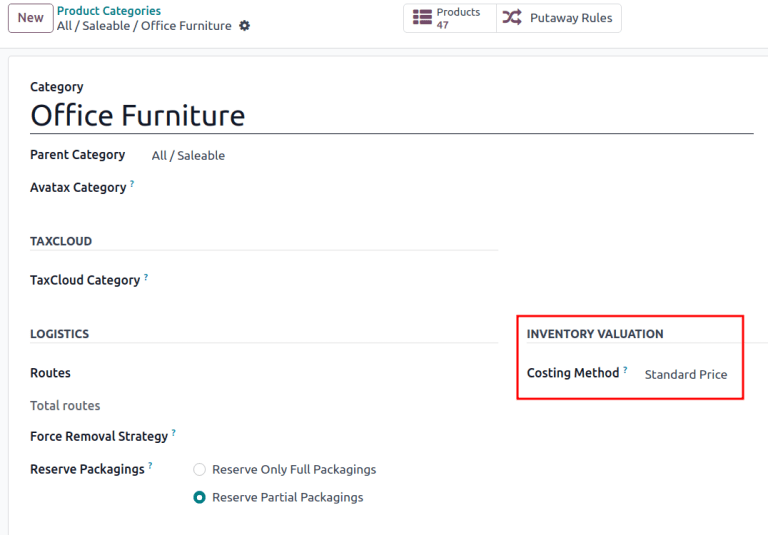
Odoo gives you three costing methods, settable at the category level: Standard Price, Average Cost (AVCO), and FIFO. This isn't a cosmetic choice — it changes how your cost of goods sold is calculated on every single sale.
Standard Price uses one fixed cost you set manually and update periodically. It's simple and predictable, which suits businesses where purchase prices barely move — think of a distributor with long-term supplier contracts. AVCO recalculates a weighted average cost every time you receive stock at a different price. It's the most forgiving option for businesses like electronics retail where supplier prices fluctuate but you don't need to track individual batches. FIFO assumes you sell your oldest stock first and values COGS accordingly — this is the natural fit for perishables and agricultural products, where stock actually does move oldest-first and where accurate margin tracking on aging inventory really matters.
Don't default to Standard just because it was the box that was ticked when you installed the system. If you're selling anything with real price volatility or shelf life, AVCO or FIFO will give your accountant numbers they can trust.
Step 4: Mark the product as Storable and assign the correct category
None of the category-level accounting matters if the product itself isn't set up to use it. Open the product form, and check two things. First, the Product Type must be set to Storable Product — a service or a consumable product doesn't generate inventory valuation entries at all, by design, because Odoo doesn't track stock quantities for them. Second, the Product Category field must point to the category you just configured, not to "All" or to some leftover default from when the database was first set up.
This is where I see the most silent failures. Someone imports two hundred products via a spreadsheet, the import defaults every one of them to the "All" category, and three months later the accountant is asking why half the stock has no valuation trail. Go back and audit your product list against category assignment — it takes ten minutes and saves a very awkward month-end conversation.
Step 5: Verify the journal entries on your first receipt and delivery
Once Automatic Accounting is on and your product/category setup is correct, do a test. Receive a purchase order for a storable product, then confirm a delivery. Each of these stock moves creates a Stock Move Layer (SVL), and every SVL generates its own journal entry automatically. Go check it — Inventory → Reporting → Valuation will show you the SVL, and from there you can open the linked journal entry directly. If you see debits and credits landing in the Stock Input, Stock Output, and Stock Valuation accounts you configured, you're done. If you see nothing, walk back through steps 1 through 4 — one of them was skipped.
Perpetual vs. Periodic — which fits Oman?
There are two recognized accounting practices for when these entries get posted. Periodic accounting — the European convention — posts vendor bills as expenses by nature and only adjusts stock valuation at closing time. Perpetual accounting, the Anglo-Saxon standard, posts vendor bills as assets going straight into stock valuation and only recognizes cost of goods sold when the delivery actually happens.
For most Omani SMBs I work with, Perpetual is the better fit once you've enabled Automated valuation — it's the natural pairing, since Automated valuation is built around real-time postings per transaction rather than end-of-period adjustments. If your auditor or parent company insists on European-style periodic reporting for statutory reasons, that's a conversation to have before you configure the categories, not after — switching valuation methodology mid-year on a live database is a mess nobody enjoys.
The mistakes that keep showing up
Three things account for nearly every "why isn't this posting" support call I get on this topic. One: the product category has no accounts assigned at all — someone created a category for organizational purposes only and never touched the accounting tab. Two: the product is set as a Consumable or Service type instead of Storable, so it was never eligible for valuation in the first place. Three: Automatic Accounting was never ticked in Accounting → Configuration → Settings, so every category setting is correctly configured but structurally inactive. Check these three in order — it's almost always one of them.
Quick pre-month-end checklist
- Automatic Accounting is ticked under Accounting → Configuration → Settings.
- Every active product category has Inventory Valuation set to Automated, with Stock Valuation, Stock Input, and Stock Output accounts assigned.
- No live product sits under the default "All" category.
- Every stock-tracked item is set to Storable Product, not Consumable.
- Costing method matches the nature of the goods — Standard for stable pricing, AVCO for fluctuating supplier costs, FIFO for perishables.
- A sample receipt and delivery both show a correctly posted journal entry in Inventory → Reporting → Valuation.
Run through that list before you close the month, not after your accountant flags a mismatch. It takes fifteen minutes and it's the difference between a clean audit trail and a week spent reconciling stock accounts by hand.
References
- Automatic inventory valuation — Odoo 18.0 documentation
- Automatic inventory valuation — Odoo 19.0 documentation
- Valuation cheat sheet — Odoo 19.0 documentation
- Inventory valuation configuration — Odoo 15.0 documentation
- Inventory valuation configuration — Odoo 13.0 documentation
Image: USDAgov — PDM (via Openverse)