Odoo + LDAP/Active Directory: Setup Guide and the Login Bug Nobody Warns You About
A field-by-field walkthrough for wiring Odoo into LDAP or Active Directory, plus the referral-chasing bug that silently rejects valid AD credentials.
Every business running Odoo alongside Active Directory eventually asks the same question: why are we maintaining passwords in two places? The answer is usually "because someone never finished the LDAP setup," and that's a shame, because the built-in module works fine once you know where it likes to trip people up. This guide walks through the exact fields, the auto-provisioning behavior, and one Active Directory-specific bug that has caught out enough admins that Odoo documents it directly.
Why centralize authentication in the first place
Separate local Odoo accounts mean separate password policies, separate reset procedures, and a user list that drifts out of sync with HR reality the moment someone leaves the company. Tie Odoo logins to your existing LDAP or AD server and you get one source of truth: disable the AD account, and the person can't log into Odoo either. That's not a nice-to-have for any environment with more than a handful of users — it's basic access control hygiene. It also means your password complexity, expiry, and lockout rules apply consistently, instead of Odoo running its own weaker rulebook on the side.
Turning the module on
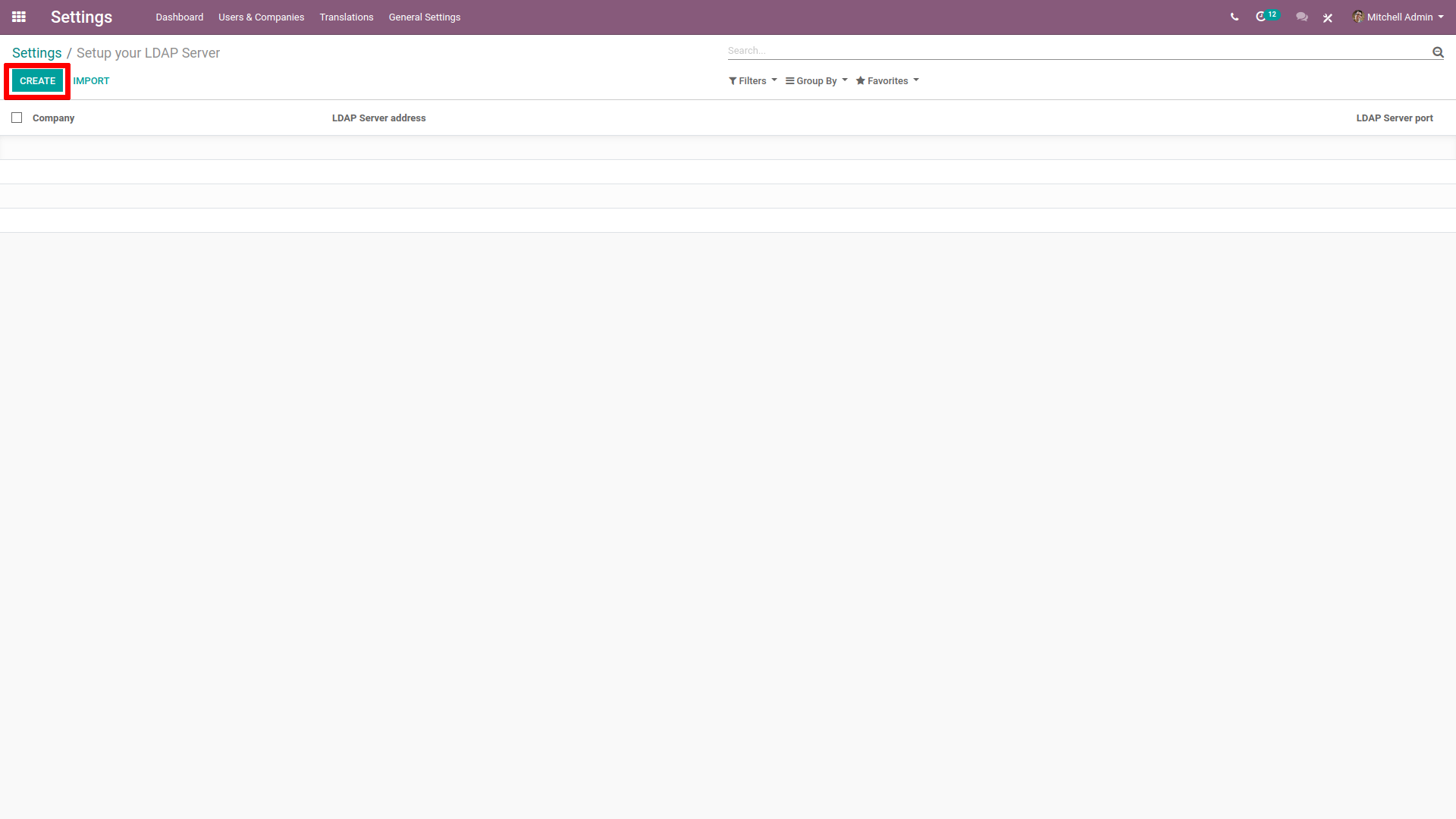
Go to Settings, scroll down to the Integrations section, and enable LDAP Authentication. Save the settings page — this step is easy to forget, and nothing downstream works until you do it. Once saved, a new "LDAP Server" entry becomes available; create one and select which company it applies to. If you run a multi-company database, note that each company gets its own LDAP server list, which matters later when you're deciding sequence order across multiple directory servers.
Field-by-field: server information
In the server information section you'll enter the LDAP server address and port. For plaintext LDAP that's typically port 389; for LDAP over SSL it's 636. There's also a "Use TLS" checkbox — enable it if your server has StartTLS configured, which requests secure TLS/SSL encryption for the connection. Don't skip this in production. Sending directory credentials over an unencrypted connection on your internal network is a bad habit that becomes a real liability the moment someone's laptop ends up on the wrong VLAN.
Field-by-field: bind account
The bind DN and bind password fields hold the credentials Odoo uses to query the directory before it can authenticate anyone else. Leave them empty and the server performs the query anonymously — which many AD environments block outright, and which you shouldn't allow even where it's technically possible. Create a dedicated service account with read-only rights scoped to the directory, and use that account's DN here. Don't reuse a domain admin account for this. If that bind account's credentials ever leak through a misconfigured Odoo backup or log file, you don't want it holding the keys to your whole domain.
Field-by-field: base and filter
The LDAP base defines where in the directory tree Odoo starts searching — something like dc=yourdomain,dc=com. Scope this as tightly as you can. Pointing it at the root of a large AD tree means every search walks through irrelevant OUs and slows down every login attempt.
The LDAP filter is where Active Directory setups most often get it wrong, because AD doesn't use the same attribute conventions as generic LDAP or OpenLDAP. Two filters cover almost every real-world case:
sAMAccountName=%s— authenticate using the AD login ID (the pre-Windows-2000 username). This is what most environments want, since it matches what people already type to log into Windows.mail=%s— authenticate using the user's email address instead, useful if your organization standardizes logins on email everywhere, including Odoo.
Pick one and test it against a known-good account before you roll it out to anyone else. A wrong attribute name here doesn't throw a clear error — it just quietly rejects every login, which is exactly the kind of failure that eats an afternoon if you don't know to check it first.
Auto-provisioning users on first login
You don't have to pre-create every Odoo user by hand. Enable "Create User" on the LDAP server entry and Odoo will provision a new user profile automatically the first time someone authenticates successfully. You can point that provisioning at a specific user template, which controls default groups, access rights, and company assignment for new accounts. If you don't select a template, Odoo falls back to cloning the administrator's profile — which sounds convenient until you realize that means every new employee who logs in for the first time gets admin-level access. Set a proper limited-rights template before you flip this switch. Skipping that step is one of the fastest ways to end up with a dozen accidental administrators in a growing company.
The Active Directory referral-chasing bug
Here's the one that generates the most support tickets: credentials are correct, the bind account works, the filter is right — and the user still can't log in. Odoo's own documentation across versions 17, 18, 19 and the current master branch calls this out specifically for Microsoft Active Directory. The cause is referral chasing in the LDAP client library: when AD returns a referral response during the search (common in multi-domain-controller setups), the underlying client tries to follow it, and that chase fails silently, rejecting an otherwise valid login.
The documented fix is a system parameter, not a code change. Turn on developer mode, then go to Settings → Technical → System Parameters and create a new entry:
- Key:
auth_ldap.disable_chase_ref - Value:
True
Save it, and retry the login. If your AD-integrated users are getting rejected despite double- and triple-checked credentials, check this parameter before you burn more time re-testing bind DNs and filters — it's the single most common AD-specific gotcha in this whole integration.
Security hardening checklist
A working connection isn't the same as a secure one. Before you consider this integration production-ready, confirm the following:
- TLS or StartTLS is enabled on the LDAP server entry, and the directory server actually supports it — don't check the box and assume.
- The bind DN uses a dedicated, least-privilege service account, never a domain admin or personal account.
- Anonymous bind is disabled on the directory side wherever your AD policy allows it, so an empty bind DN field can't be exploited even by accident.
- The LDAP base is scoped to the specific OU where your Odoo users actually live, not the whole domain tree.
Multi-company and multiple LDAP servers
If your database serves more than one company, remember that LDAP server entries are configured per company — set up a separate entry for each company that needs directory login. When more than one LDAP server applies (for example, a primary domain controller and a fallback, or two separate directories for two business units), sequence order matters: Odoo checks servers in the order they're listed and uses the first one that successfully authenticates the user. Put your fastest, most reliable directory server first, and use the sequence field to control that order deliberately rather than leaving it to whatever order the entries happened to get created in.
Pre-go-live pitfalls checklist
Run through this before you tell anyone the new login method is live:
- Confirm port 389 vs 636 matches whether TLS is enabled — a mismatched port and TLS setting is a common, avoidable dead end.
- Test the LDAP base DN scoping with an actual search tool (like
ldapsearch) before trusting it inside Odoo's UI, where errors are less descriptive. - Verify the filter syntax against a real AD account — confirm whether your organization's login convention is
sAMAccountNameor email-based before committing to one. - Set
auth_ldap.disable_chase_refproactively in AD environments rather than waiting for the first help-desk ticket. - Pick a restricted user template for auto-provisioning before enabling "Create User" — never leave it on the administrator fallback.
Test this with one non-critical account first — ideally someone in IT, not the finance manager who needs to close the books today. Confirm login works, confirm the provisioned access rights are correct, and only then roll it out company-wide. If a login gets rejected after all of that, the referral-chasing parameter is still the first thing to check, not the last.
References
- LDAP authentication — Odoo 18.0 documentation
- LDAP authentication — Odoo 19.0 documentation
- LDAP authentication — Odoo 17.0 documentation
- Sign in with LDAP — Odoo 16.0 documentation
- LDAP Authentication - How to configure? (Odoo Forum)
- LDAP authentication — Odoo 18.0 documentation mirror (auth_ldap.disable_chase_ref detail)
Image: DeclanTM — BY (via Openverse)
Leave a comment
Your email address will not be published. Required fields are marked *